 Maximus's
 Onboarding
Getting started
You'll open a broking account in your own name, then give the desk permission to place orders in it. At no point do you send us your password.
Before you begin
This is invite-only, and everyone starts in paper mode — simulated trades on real market data. Nothing real happens to your money until you decide it should, and that decision is a switch on your own dashboard.
Please read the risk disclosure first. You can lose money, including all of it.
What you'll need to hand
- PAN card
- Aadhaar, with the mobile number linked to it (the OTP goes there)
- Bank account details — account number and IFSC
- A cancelled cheque or bank statement
- A signature on plain white paper, photographed
- Your selfie / photo for in-person verification
- Income proof — only if you want F&O enabled (a payslip, ITR or a 6-month bank statement)
- IOpen a Shoonya account
- IIFund it — but only what you intend to risk
- IIIGet your API credentials
- IVSend us four things — and nothing else
- VAuthorise the desk
- VIWatch it in paper mode
- VIIGoing live is your switch
Two of the pictures below are of our own dashboard and are real captures of it. The three marked places where a broker screen would go are deliberately empty — see the note on the first one.
At the broker
Entirely in your own account, on Shoonya's site. We are not involved in any of it and cannot do it for you.
Open a Shoonya account
10 minutes, then 1–2 days of waitingShoonya is Finvasia's platform. Account opening is free (₹0), and it is the broker this software integrates with.
Open an account at prism.shoonya.com →
Complete the KYC with the documents above. Verification usually takes a day or two. You'll receive a client ID (your user ID) by email when it's approved — keep that message.
prism.shoonya.com — and you get there from the button above rather than from
a link in any email.Fund it — but only what you intend to risk
A few minutes, once KYC clearsAdd money from the bank account you registered. Start with an amount whose total loss would not change your life. You can always add more later; you cannot un-lose money.
Get your API credentials
About 5 minutesAlgorithmic access needs a developer key. It's free and takes a minute.
Where prism.shoonya.com ▸ profile menu ▸ API Key
- Log in at prism.shoonya.com with your client ID.
- Open the profile menu and choose API Key.
- Copy the API Key, the Vendor Code, and the Secret.
-
Whitelist our server's IP address. Shoonya ties an API key to
one address and refuses calls from anywhere else, so this step is not optional —
without it your key will simply be rejected and nothing will trade. Enter:
140.245.226.243
Why we give you an IP rather than ask for one
The whitelist is a lock on your account that only you can set, and it is worth understanding what it buys you: even if our credentials for your account were stolen outright, they would be useless from anywhere but that one machine.
It cuts both ways, and you should know the trade: if we ever move servers, your key stops working until you update this, and we will tell you the new address ourselves. Nobody else should ever ask you to change it. A request to add an unfamiliar IP to your broking account is exactly what taking over an account looks like — check with us first, on a channel you already trust.
The handover
The only two steps where anything passes between us. Read the block in step IV before you send anything at all.
Send us four things — and nothing else
2 minutesReply to your invitation with:
Client ID
Your Shoonya user ID.
Vendor Code
From the API Key page.
API Key
From the API Key page.
Secret
From the API Key page.
Do not send us these — we don't want them
- Your trading password. Never. We have no use for it, and asking for it is what a scam looks like.
- Your TOTP / 2FA seed. Not needed. It would hand over permanent control of your account, so it is off by default and only ever collected if you explicitly ask for unattended re-login.
- Your bank or card details. We never touch your money.
If anyone — including someone claiming to be us — asks for your password or 2FA seed, refuse, and tell us.
Authorise the desk
2 minutes — and this is the clever bitWe'll send you a one-time link. It goes to Shoonya's own login page, not ours.
- Open the link. Check the address bar says
shoonya.com. - Log in there with your own password and 2FA. We never see either.
- Shoonya redirects you to a page with a
code=value in the address bar. - Send that code back to us. It's single-use and short-lived.
We exchange it for an access token. That token is what lets the desk place orders — and you can revoke it from your Shoonya account at any time, without asking us, which instantly stops any further trading.
This is the same mechanism that lets you connect an app to Google or Facebook without handing over your password. It is also what SEBI's algorithmic trading rules require, so it isn't optional for us either.
On your dashboard
From here everything is a control you hold, and nothing moves without you pressing it.
Watch it in paper mode
As long as you likeWe provision your private desk and send you a dashboard link and login. It starts in paper mode. From there you can see positions, cash, P&L and a decision log explaining every action it took and why, plus a daily report by email.
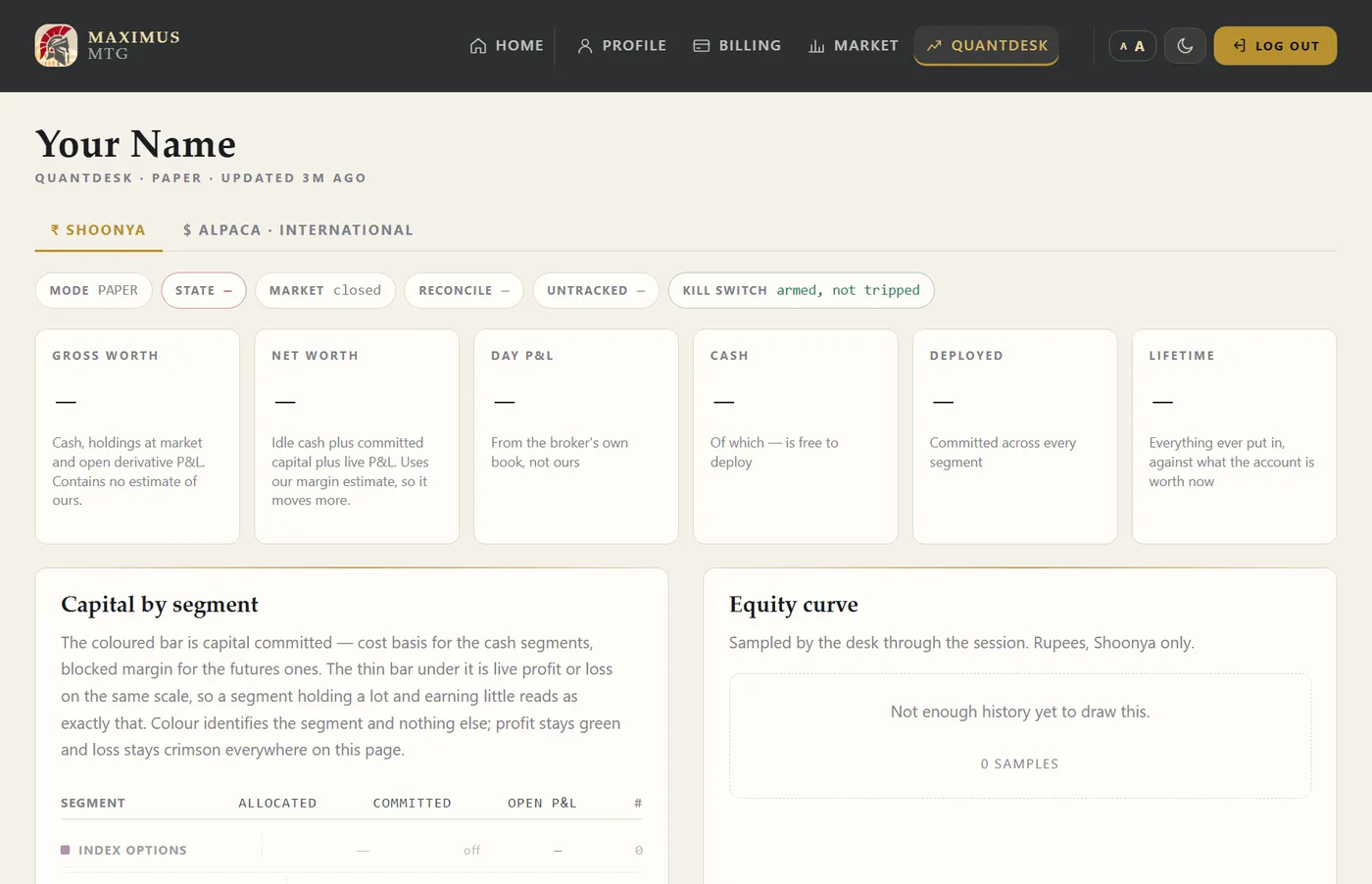
Stay in paper as long as you like. We'd rather you saw it have a bad week before you go live — we earn the same either way.
Going live is your switch
Whenever you decide, and not beforeWhen you're ready, you enable live trading on your own dashboard and set the capital you're allocating. Not us. You can pause, stop, or leave at any moment.
Stopping never stops exit management. Pausing halts new entries; the stop-loss on anything already open keeps running, because a halt that also abandoned an open position would be the most dangerous button on the page.
Where you can see all of this, once you're in
Every step above appears on your own dashboard, under Profile, with the state of each one against it — and each row links back to the step on this page that explains it. You never have to remember where you were.
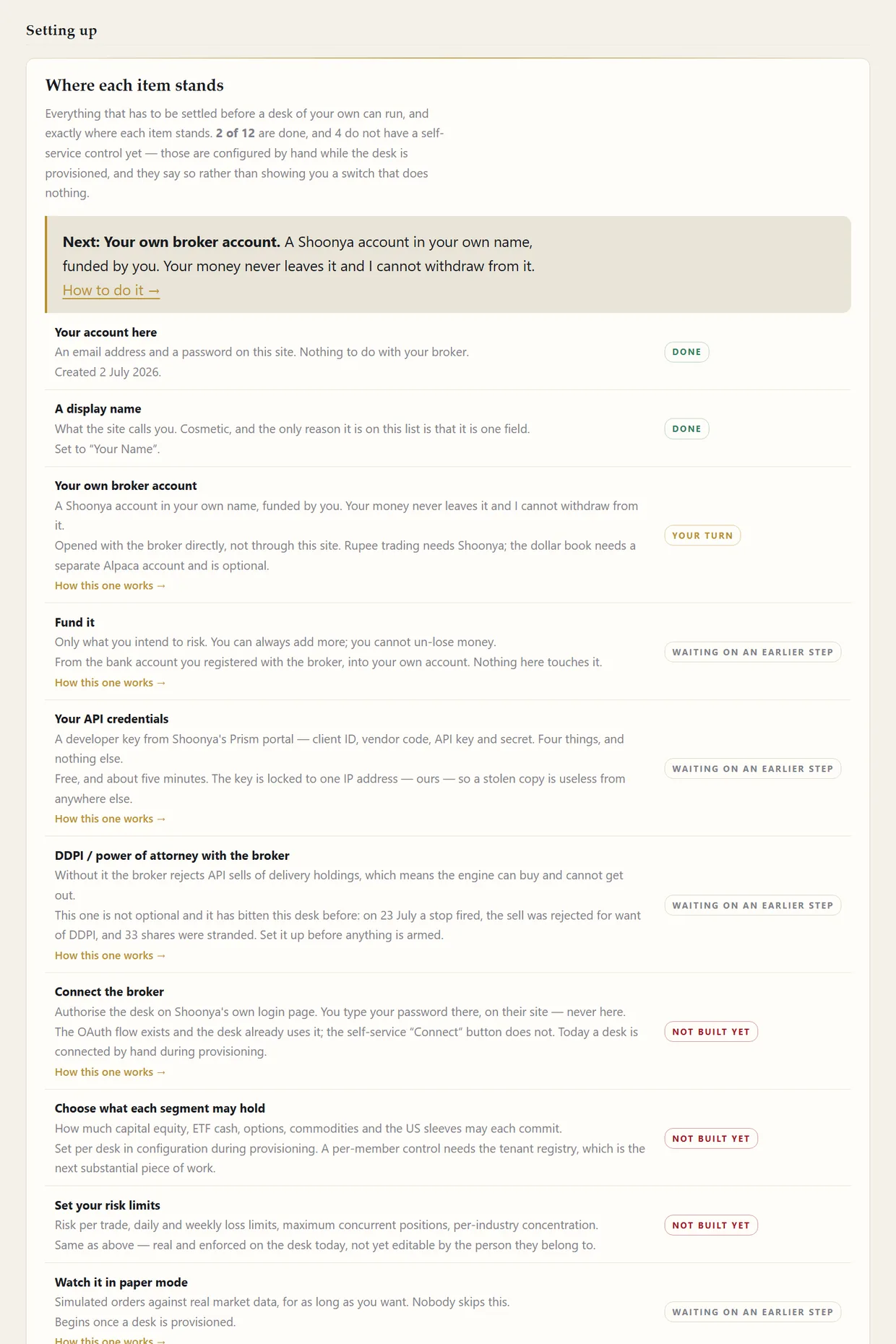
Optional: the dollar book
Everything above connects the rupee book. There's a separate, optional dollar book on Alpaca, a US broker, if you want one — different money, different account, never mixed with the figures above. See connecting Alpaca.
Let the desk read your contract notes
Shoonya's trading API will not tell the desk what a trade cost. Brokerage, STT, exchange and stamp charges appear nowhere in it. The desk can model them — and does — but a model is not a bill, and the difference is not small: over one month the options book made ₹1,652 before charges and ₹7.64 after them. Nothing on the screen could have shown you that.
There is one document that settles it, and it already arrives. Shoonya emails a Combined Contract Note every trading day: their own signed tax invoice, itemised per segment, with the brokerage figure on it. Give the desk read access to that mailbox and it reconciles the model against the invoice every evening, tells you when the two disagree, and stops guessing.
Send us three things:
- The mailbox the contract notes arrive in — the address, and an app password, never your real one. On Gmail that is Google app passwords; it grants mail reading only and you can revoke it in one click.
- Your PAN, in capitals. The PDF is encrypted and the PAN is the password. Without it the note arrives and cannot be opened — the desk will tell you that is what happened rather than quietly reconciling against nothing.
- Which folder, if you filter them out of the inbox.
Read-only, and narrow. The desk searches for mail from
backoffice@shoonya.com with "Combined Contract Note" in the subject, and
opens nothing else. It never sends mail, never deletes anything, and never signs in to the
back-office portal for this — the emailed note costs nothing to fetch and cannot lock your
account out, which the portal can.
Optional, and the desk runs without it. What you give up by skipping it is the ability to know what you actually paid: the charges panel keeps saying estimated, and it stays an estimate nobody ever checked.
Optional: alerts to your phone
The desk can message you when something needs attention — a failed exit, an expired session, an unusual position. Email works out of the box. For Telegram, message @BotFather, create a bot, and send us the token and your chat ID.
If something goes wrong
- KYC rejected — usually a mismatch between PAN and Aadhaar names, or a blurred document. Shoonya's support will say which.
- No API Key option in Prism — the trading account must be fully active first. Wait for the approval email.
- Your key is rejected and nothing trades — almost always the IP whitelist in step III. Check the address matches exactly, digit for digit.
- The authorisation link expired — they are short-lived on purpose. Ask us for another.
- You want out, right now — revoke access in Shoonya and email us. See refunds & cancellation; we never sell your holdings on our own initiative.
Stuck anywhere? Email and we'll walk you through it.